Slideshow: the whole evening on the big screen
Every photo task and every bingo becomes a photo. The slideshow gathers them on the big screen, so guests get to see themselves and each other and remember the evening together.
A slideshow that runs itself
You start the slideshow and let it roll. The rest happens by itself.
The photos in motion
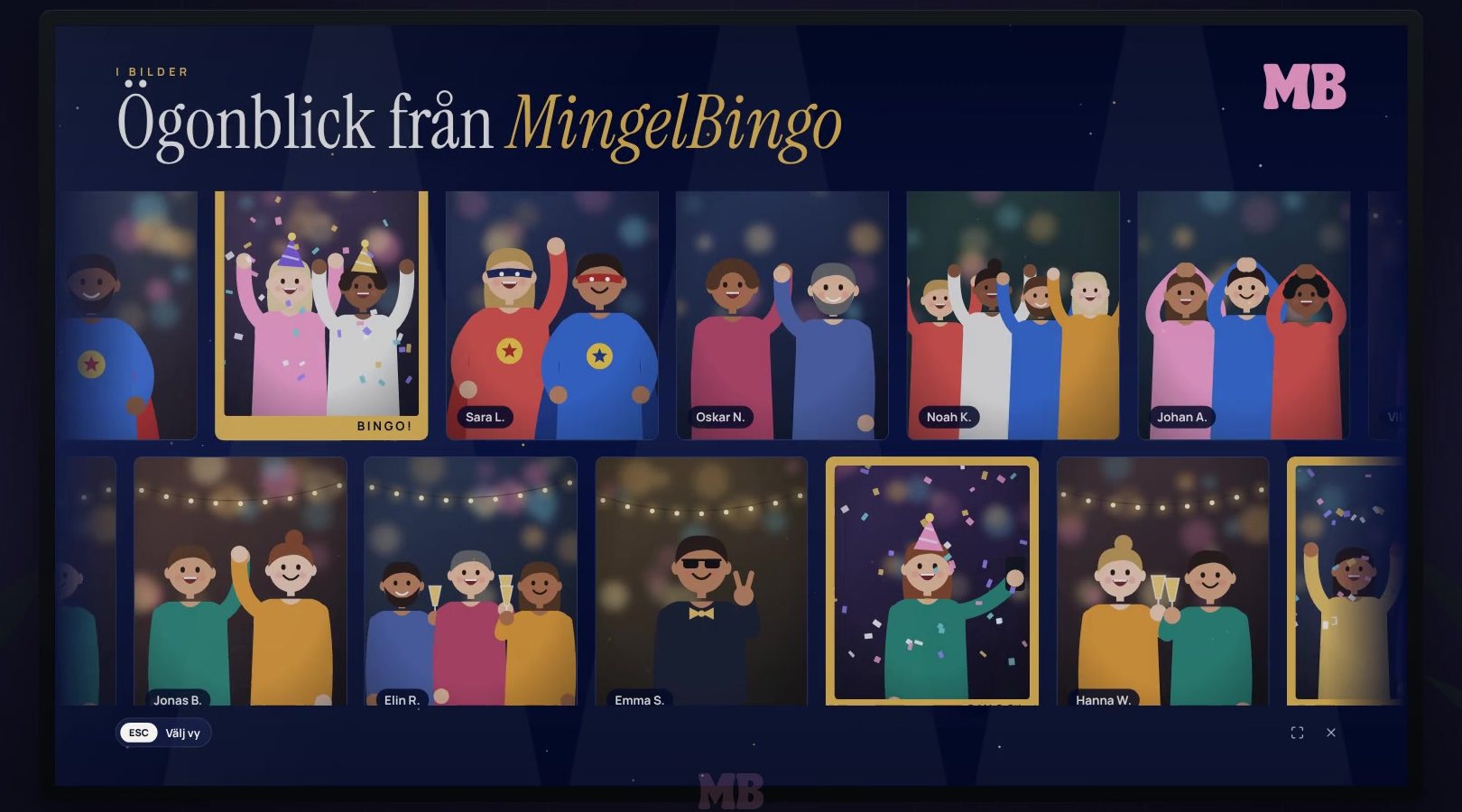
The photos glide by in two rows under the heading “Moments from”. Bingo photos get a gold frame so they stand out.
One photo in large format
About once a minute a photo is highlighted in large format, with the name of the person who took it, the time and which task it belongs to.
New photos all the time
Photos taken during the evening are added automatically, so the slideshow grows while guests play.
Guests decide about their photos
When guests start playing, they choose for themselves whether the photos they take may be used. The slideshow only shows photos from guests who have said yes, so you can show it on the big screen without hesitation.
How to get more photos to show
The slideshow gets more fun the more photos guests take. A few simple things make a big difference.
Add photo tasks
Tasks like “Take a selfie with someone you're meeting for the first time today” give you photos from the whole room. The more photo tasks, the more photos.
The bingo photo
When someone gets bingo, they can take a photo to celebrate. Those photos get a gold frame in the slideshow and stand out a little extra.
Remind people about consent
Only photos from guests who have agreed that their photos may be used are shown. Mention at the start that people should tick the box, and more photos will be included.
Send a reminder
Send a notification to everyone playing and remind them about the photo tasks, for example a while before dinner.
Three good moments for the slideshow
When the game has closed
Let the slideshow roll while guests are still there. People stay and look for themselves.
Dinner or a break
Show the slideshow during dinner or between programme items, so the mingle lives on even when everyone is seated.
Kickoff or staff meeting
Start the next get-together with the photos from last time. A simple way to bring the memories back to life.
The photos live on after the evening
All the photos are kept in Photos, ready to download. Each guest can also get their own MingelBingo Wrapped, with their photos and who they talked to.
The questions that usually come up
Which photos are included in the slideshow?
Photos from photo tasks and bingo photos, from guests who have agreed that their photos may be used.
In what order are the photos shown?
The mosaic starts with the latest photos. The highlighted photo is chosen from the photos on the screen, and the same photo isn't shown twice in a row.
Can the slideshow run while the game is going on?
Yes. New photos appear by themselves, so the slideshow can be on during the mingle.
What is shown if there are no photos yet?
The screen shows that there are no photos to show yet. The slideshow starts as soon as the first photos are taken.
Can we get the photos afterwards?
Yes. All the photos are in Photos, where you can download them for social media or internal use.

Digital mingle bingo: the game that gets people to meet, move around and discover more.