Presentation Mode: put the game on the big screen
With Presentation Mode, MingelBingo becomes something the whole room follows. Show the leaderboard during the mingle, the evening's photos afterwards and draw the winners with suspense at the end. Everything is controlled from the computer connected to the screen or projector.
A view for every part of the evening
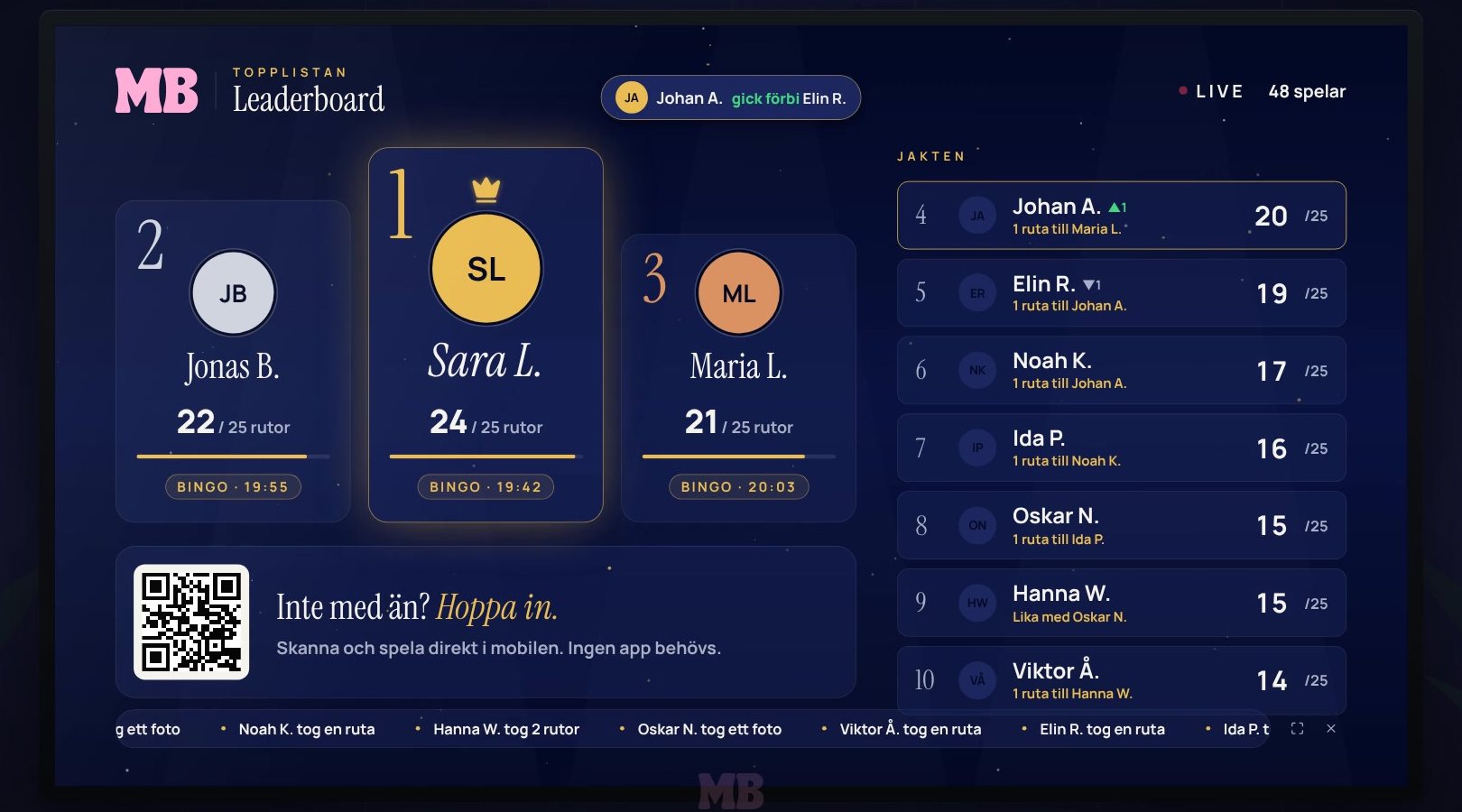
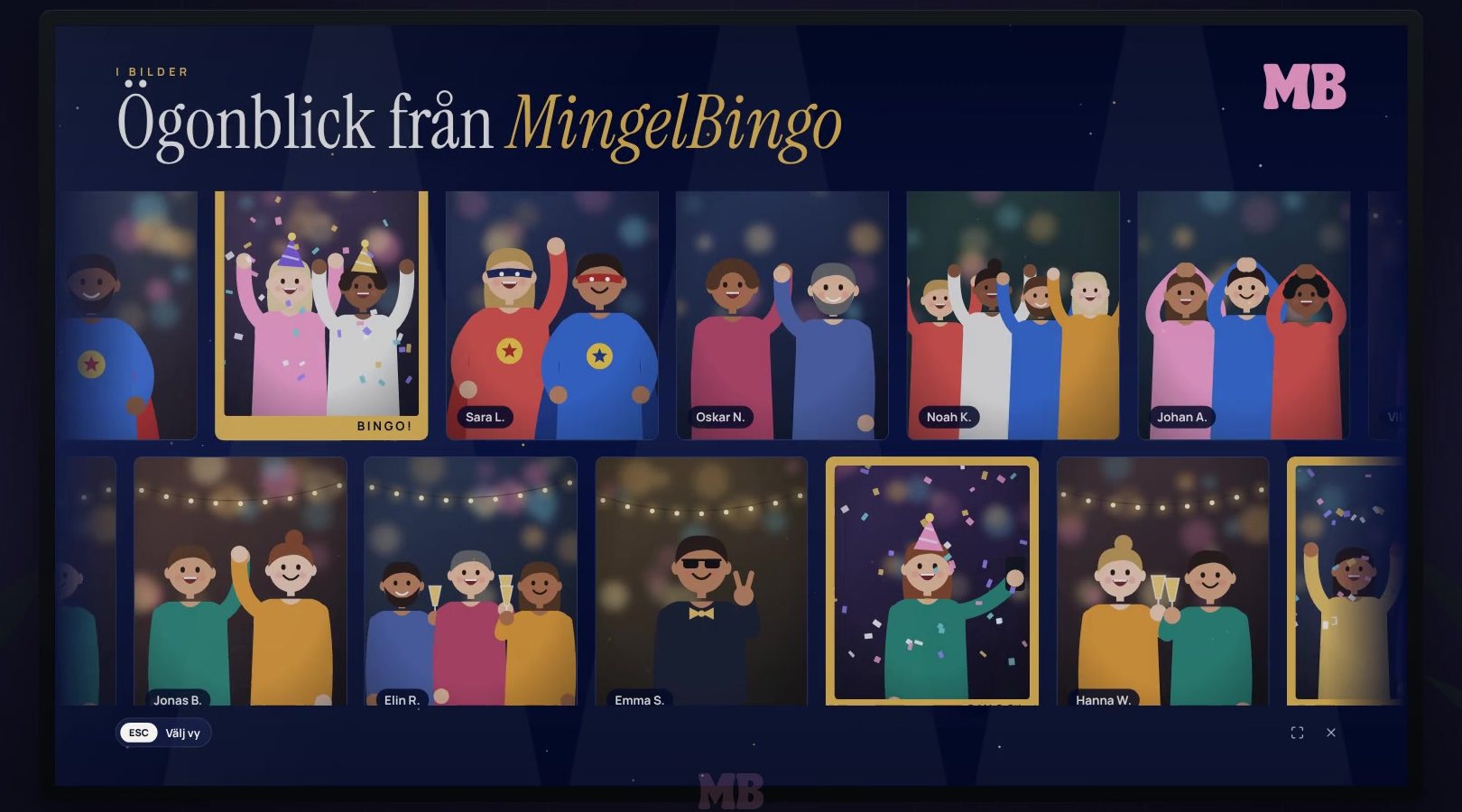
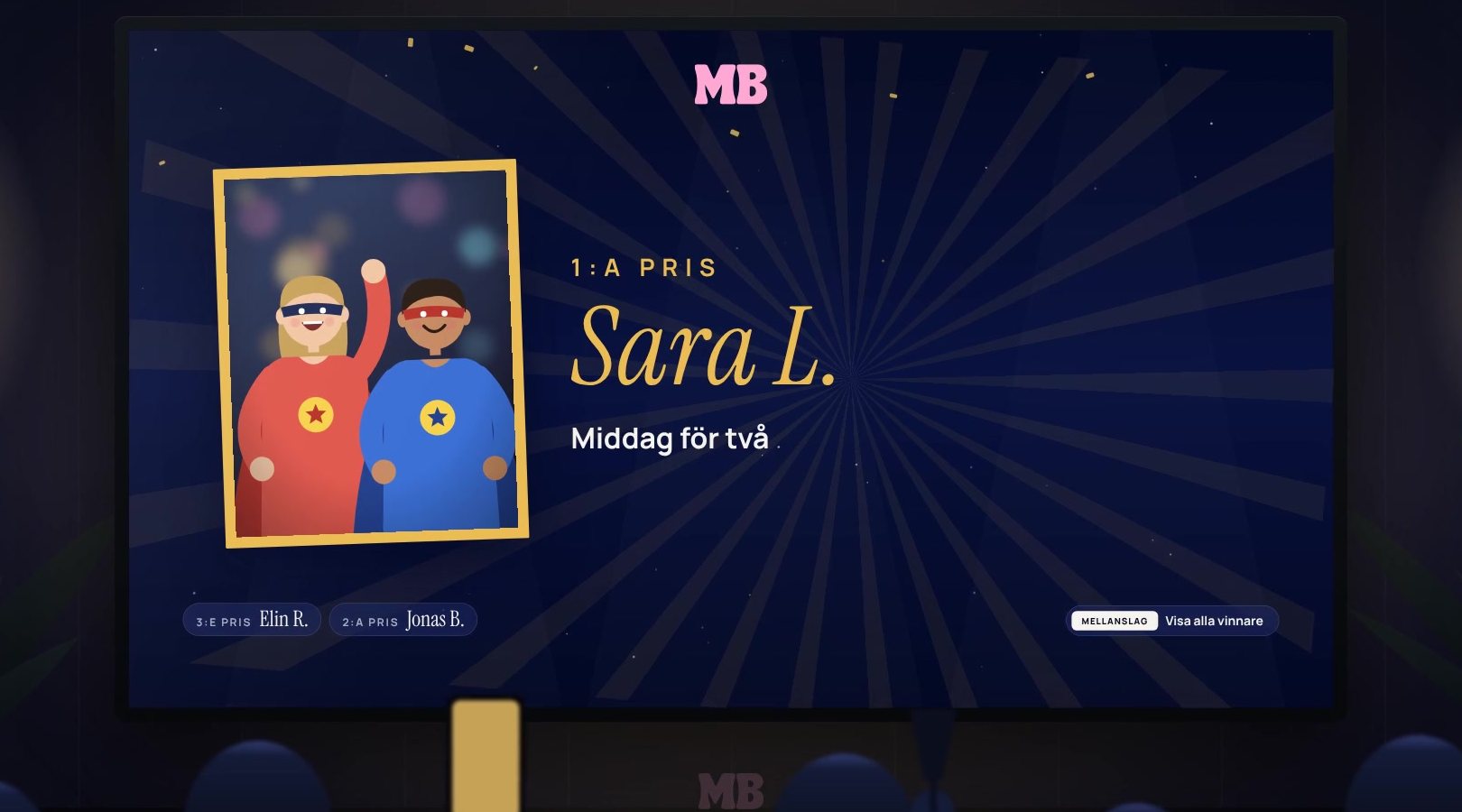
Each view has its own job. The leaderboard builds the competitive spirit while everyone plays, the slideshow gathers the memories and the winner draw gives the evening a proper finale.
Why the game is more fun on the big screen
When the game is visible to everyone, it becomes something you do together, not just something you do on your own phone.
Excitement you can see
Everyone sees when someone overtakes, takes the lead or gets bingo. It gives people something to talk about and a reason to chase one more square.
More people want to join in
The QR code on the screen catches guests who arrive late or haven't got started, so more people jump into the game.
A finale everyone remembers
The slideshow and the winner draw bring the room together at the end, and guests go home feeling they've been part of something.
From Event View to the big screen in four steps
Connect the screen
Connect a computer to the screen, TV or projector at the venue.
Open Presentation Mode
Go to your event in Event View and choose Presentation Mode. It opens straight in full screen.
Choose a view
Choose Leaderboard, Slideshow or Draw winners in the menu, or press 1, 2 or 3.
Follow the evening
Switch view as the evening moves on. Press Esc to get back to the menu.
How the big screen can follow your evening
Switch view as the evening moves on. Here's a plan that works for most events, and you decide when it's time to switch.
Have the leaderboard up from arrival. The QR code on the screen lets guests start playing straight away, and the first names on the list get more people to join in.
Keep the list up while everyone plays. Guests see when someone overtakes or gets bingo, and it sparks new conversations and more energy in the room.
Switch to the slideshow when the guests sit down. The photos from the mingle roll by, and new photos are added automatically.
Gather the room in front of the screen and draw the winners. The draw starts with the last prize and ends with the first prize, and finishes with the prize giving.
Show the slideshow again at the next kickoff or staff meeting. All the photos are also kept in Photos, ready to download.
Rather not run the screen yourselves?
With Hosted we come out to the venue, run the big screen and keep the game alive all the way from the first square to the prize giving. You can focus on your guests.
The questions that usually come up
What equipment do we need?
A computer with a browser connected to a screen, TV or projector, and connected to the internet throughout the event. Participants play on their phones as usual.
Can you run the big screen for us?
Yes. With Hosted we come out to the venue, run the big screen and keep the game alive throughout the event.
Where do we start Presentation Mode?
In Event View, where you already follow your event. Presentation Mode opens in full screen and shows a menu where you choose the view.
Can we switch view during the evening?
Yes. Press 1 for the leaderboard, 2 for the slideshow and 3 for the winner draw. Press Esc to get back to the menu.
Are guests' full names shown on the screen?
No. The big screen shows the first name and the first letter of the surname, for example Maria L.
Are all photos shown in the slideshow?
No, only photos from guests who have agreed that their photos may be used.
Do we need to refresh the screen ourselves?
No. Presentation Mode fetches the latest from the game by itself, so you can leave it on while everyone plays.

Digital mingle bingo: the game that gets people to meet, move around and discover more.