Photo question: movement, laughter and photo memories from the whole event
MingelBingo's most visual question type. While the text questions spark thoughts and conversations, the photo question creates movement, laughter and real photo memories, taken by the participants themselves.
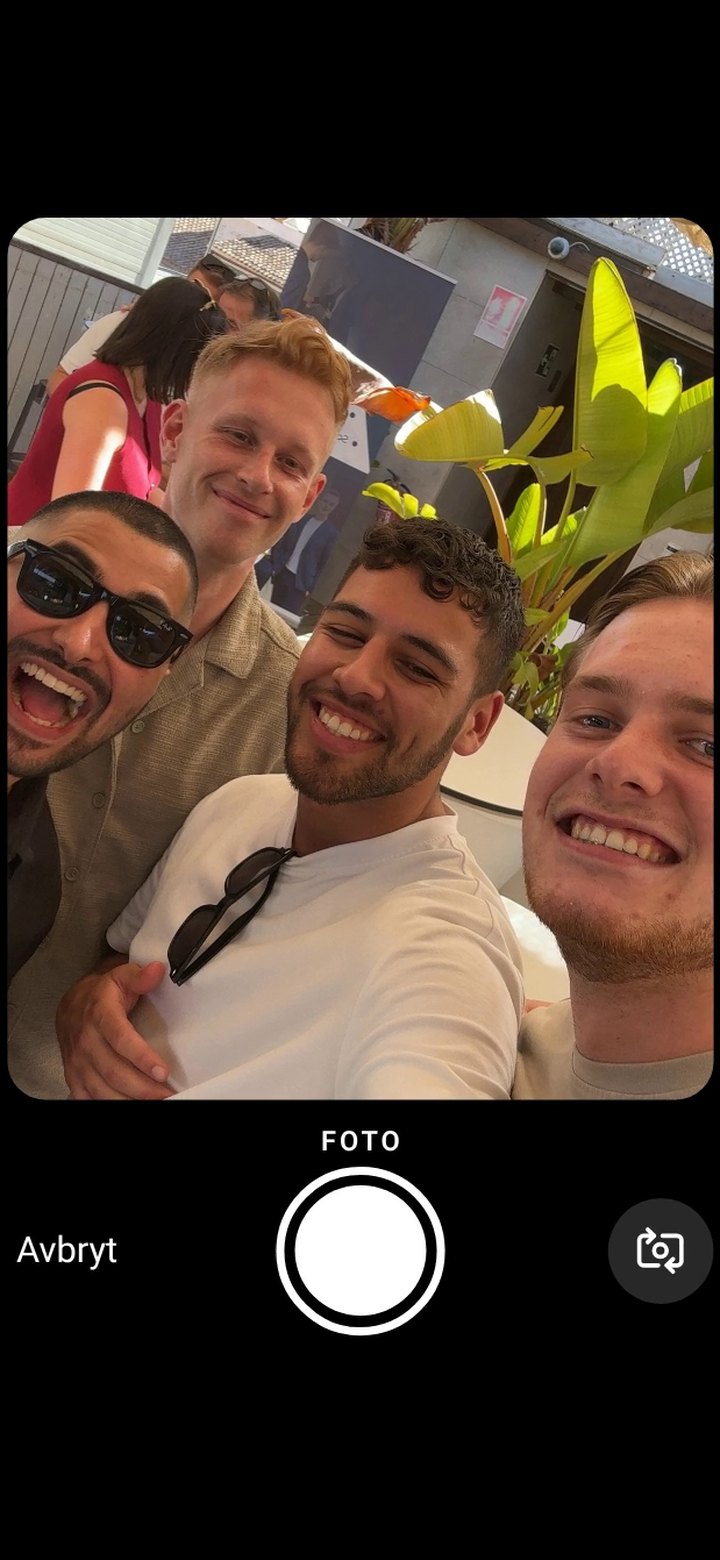
Three things the photo question does for your event
Breaks the ice and creates laughter
Challenge participants to take selfies with colleagues they've never talked to, pull funny faces or photograph the whole gang in a pose.
Activates the show and the booths
Let participants photograph a product at an exhibitor's booth, a detail on a map or themselves in front of the photo wall: the photo shows they were there.
Documents the event for you
Participants create an authentic, lively photo library from the whole event themselves, a perfect complement to the photographer.
Step by step
Taps the photo square
Photo squares are marked with a camera icon on the card.
Reads the task
The card shows what to photograph, for example “Take a selfie with someone who has the same shoe size as you”, and the button Take photo.
The camera opens straight away
A clean camera mode opens with no delay. The player easily switches between selfie and the regular camera, and the selfie is mirrored just like in the phone's own camera.
Reviews the photo
A preview appears straight away: retake or tap Use photo.
Done at once
The camera closes, confetti shoots across the screen and the square fills with the event's colour. The photo uploads in the background, so the player keeps playing without waiting.
What makes the photo question smart in MingelBingo
Works even when the connection is poor
The photo is sent quickly and the player doesn't need to wait, even in a packed exhibition hall.
Retake whenever you like
If the player changes their mind and takes a new photo, the new one replaces the old one straight away.
The photo stays on the card
The player can tap a completed photo square at any time and see their photo in full screen.
Where the photos appear, during and after the event
The bingo celebration
When a player gets bingo or a full card, all the photos they've taken are shown in a spinning photo carousel, with confetti.
Live feed for the organiser
In Event View you see the photos streaming in in real time as participants complete their tasks.
Wrapped for every participant
The personal Wrapped summary 24 hours after the event gathers all the photos the participant took, like a digital memory album.
All photos at once
With one click you download all the photos from the event: for the slideshow at dinner or the prize giving, the intranet, Slack, the staff magazine or the marketing for next year's event. If you want to show them straight away, you can run the slideshow on the big screen.
Consent and GDPR
When participants register, you can switch on optional consent: the participant ticks whether photos they appear in may be used in your internal or external communication. In Event View and in the photo export you can clearly see which photos have consent, so only approved photos are used externally. Read our privacy policy
Example questions
How to set it up in admin
Choose the question type with the camera icon when you create or edit a question.
Keep it clear and action-oriented, for example “Take a photo of the team's strangest gadget”.
Optional: clarify the rules, for example “Everyone in the team must be in the photo”.
Optional: a map of where the photo station is, or an example pose for participants to copy.
2–4 photo questions on a card with 25 squares (about 10–15%) give the best dynamic, without players feeling they constantly have to take photos.
Parties, kickoffs, trade show trails, client events and sponsored stations.
Perfect for sponsors! Give an exhibitor or partner their own photo question, and participants will visit the booth and take a photo there.
Mix the question types
A really good card, usually 16 or 25 squares, mixes the types. This is what the mix usually looks like:
The questions that usually come up
Do participants need to download an app to take photos?
No. The camera opens straight in MingelBingo in the phone's browser.
Does it work when the connection is poor?
Yes. The photo is sent in the background, so the participant can keep playing straight away.
How do we get hold of all the photos after the event?
In Event View you download all the photos from the event with one click.
May we use the photos in our marketing?
Switch on marketing consent at registration. Then you see in Event View and in the export exactly which photos have the participant's approval.
How many photo questions should we have?
2–4 on a card with 25 squares, about 10–15%, usually gives the best dynamic.

Digital mingle bingo: the game that gets people to meet, move around and discover more.